

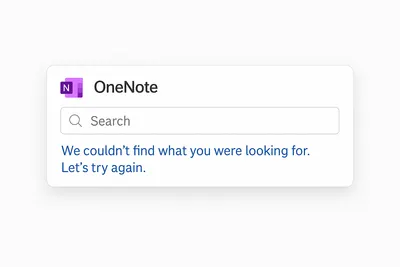
OneNote is a commonly used app for knowledge management. Many teams apply it for storing their FAQ pages, SOP's, meeting notes and other company data, as it has a full integration into Microsoft Teams. After the sunset of the Microsoft built in wiki - OneNote became the main alternative for knowledge management through Microsoft Teams. Though it offers rather user friendly editor, and you can structure your notes using Notebooks, creating a hierarchy-the main question is: how easy is it to retrieve all this knowledge? Can you get the requested information fast enough without workflow interruption? Having collected feedback from the former and current OneNote users - we can state that this is one of the most robust blocks they face using OneNote as a Microsoft Teams integrated knowledge base. Some even claim that OneNote search is simply not working.
Why OneNote's Search Feature Falls Short for Knowledge Management?
Let's have a closer look at the search feature in OneNote. Searching in OneNote is a tool that can help you quickly find the information you need. To search in OneNote, you simply have to click on the search bar at the top of the page and type in your search query. OneNote will then display all the matches inside a page or section.
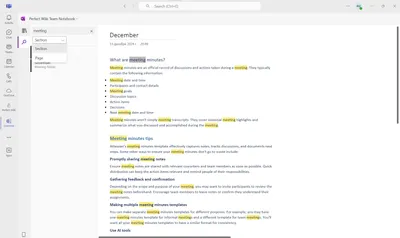
And here we stumble upon the first issue: you can only look for pages and sections in a particular notebook. So, if you have several and want to search all notebooks - that's just not possible. You'll have to switch from one notebook to another and initiate search anew every time. There's no filter or parameter to enable searching across the platform on the whole. Seems really strange and inconvenient, especially if you intend to use OneNote as a knowledge management tool for different teams, departments.
Going further - we can discover couple more inconveniences that can be not that obvious at first sight. If you want to search your OneNote for an exact phrase or multiple words - that won't happen. If you specify 2 words in the search box, it returns any page that has either of those 2 words. I.e. it is an OR function, not AND. So, get ready to receive a mess of all the keyword entries.
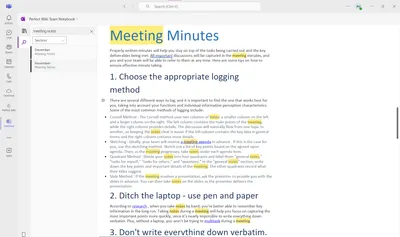
All that of course spoils the experience about the app altogether: installing the tool, creating different sorts of content, rolling out for the users and in the long run - not being able to retrieve information. All that makes OneNote rather cumbersome. Of course, OneNote offer tags, but they are not much of a help in such a situation when the search is not working properly.
Wrapping Up: Is OneNote the Right Fit for Your Knowledge Management Needs?
In conclusion, OneNote could work out if you have just couple meeting notes for one department or personal usage, however, it seems impossible to set OneNote as a knowledge base with shared access. And search seems to be one of the main obstacles. Namely, There's no proper search feature inside OneNote. You can only search a particular notebook, searching all the notebooks will be time consuming and tedious, also searching a phrase or multiple words is not an option, you'll get separate results for each entry of every keyword
Fortunately, there’s a much simpler way to run an effective knowledge base right inside Microsoft Teams with the function of a proper full-text search and even a chatbot to retrieve data quickly and accurately. We recommend to look for a solution that is designated specifically for shared knowledge management right inside Microsoft Teams - Perfect Wiki.




![Top 3 AI Knowledge Agents for Slack [2026]](/_next/image/?url=https%3A%2F%2Fstorage.googleapis.com%2Fperfect_wiki%2F89c663c2-211c-4e7c-834c-b945c28cc308%2FT8wu1vNyqGhtnU8wfjDE%2FChatGPT_Image_Dec_2%2C_2025%2C_02_06_21_PM_479aa42c-a708-45c5-87a9-e5f2720a8cca.png&w=640&q=75)

_de12d975-2d82-4fe0-b7ea-6f7e5d352249.png&w=640&q=75)
![Set Up a Microsoft Teams Wiki With Access Control [in 10 Minutes]](/_next/image/?url=https%3A%2F%2Fstorage.googleapis.com%2Fperfect_wiki%2F89c663c2-211c-4e7c-834c-b945c28cc308%2FZ6VAcashrnV8jrL2JPC4%2FChatGPT%2520Image%2520Jun%25209%2C%25202025%2C%252004_19_43%2520PM_0f1e935d-7131-45ce-bf92-cad777233f49.png&w=640&q=75)
![How-to Create a GDPR-Compliant AI Support Bot [in Microsoft Teams]](/_next/image/?url=https%3A%2F%2Fstorage.googleapis.com%2Fperfect_wiki%2F89c663c2-211c-4e7c-834c-b945c28cc308%2FZACvMjTeO217hjgYBAHZ%2FChatGPT%2520Image%2520Jun%25206%2C%25202025%2C%252003_22_30%2520PM_ea2aaa4d-663d-4b26-81b3-9af13bd42ff1.png&w=640&q=75)
![How-to Replace Your SharePoint FAQ With an AI Knowledge Bot [No Migration Headaches]](/_next/image/?url=https%3A%2F%2Fstorage.googleapis.com%2Fperfect_wiki%2F89c663c2-211c-4e7c-834c-b945c28cc308%2Fjd0VvhfeL5WHRPLDpIUc%2FChatGPT%2520Image%2520Jun%25203%2C%25202025%2C%252007_53_17%2520PM_22a829c9-18bf-4671-9a97-599c15d9150f.png&w=640&q=75)


