

- Owner
- IT Change Manager
- Effective date
- September 15, 2026
- Review cycle
- Every 12 months
1.Purpose
To make sure changes to production systems are assessed for risk, approved by the right people, tested, communicated in advance, and can be rolled back safely if something goes wrong.
2.Scope
Applies to standard, normal and emergency changes to production systems, networks and applications. Incident fixes that do not alter production configuration and routine access provisioning are covered by separate procedures.
Definitions
- Standard change
- A low-risk, pre-approved, repeatable change that follows a documented procedure.
- Normal change
- A change that requires risk assessment and approval before implementation.
- Emergency change
- A change needed urgently to resolve a critical issue, approved through an expedited path.
- Change Advisory Board (CAB)
- The group that reviews and approves normal changes based on risk and business impact.
- Rollback plan
- The documented steps to reverse a change if it fails or causes unexpected problems.
3.Responsibilities
- Change Requester
- Submits the change request, prepares the test and rollback plans, and implements or coordinates the change.
- Change Manager
- Classifies changes, schedules CAB review, and coordinates the change calendar.
- CAB Member
- Reviews and approves or rejects normal changes based on risk and impact.
- System Administrator
- Implements the change, tests it against success criteria, and executes rollback if needed.
RACI matrix
| Activity | Change Requester | Change Manager | CAB Member | System Administrator |
|---|---|---|---|---|
| Submit and classify the change request | R | A | I | I |
| Review and approve normal changes | I | R | R/A | I |
| Implement the change | C | I | I | R/A |
| Test against success criteria | C | I | I | R/A |
| Close the change and report the outcome | I | R/A | I | C |
R = Responsible, A = Accountable, C = Consulted, I = Informed
4.Materials and PPE
Materials, tools and systems
- →Change request form or ticketing system
- →Change calendar and maintenance window schedule
- →CAB meeting agenda and minutes
- →Rollback plan template
- →Test environment
5.Procedure
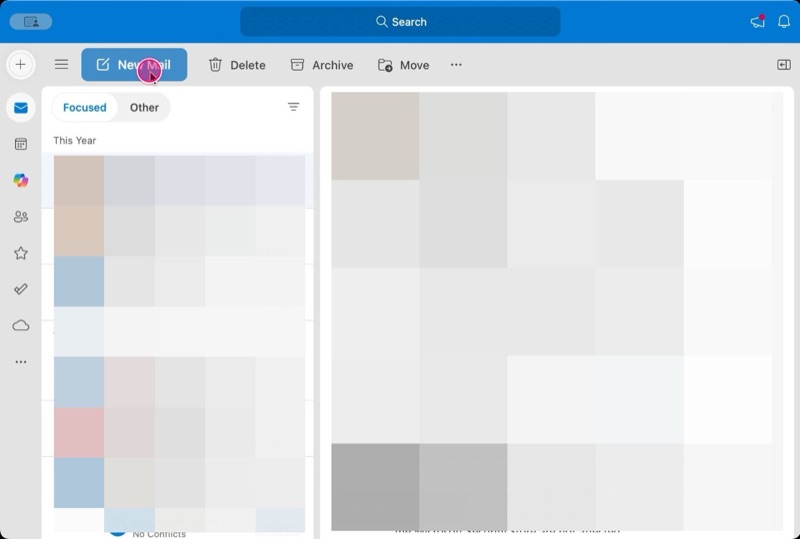
- 5.1
Submit the change request
Change RequesterThe Change Requester submits a request describing the change, the systems affected and the business justification, using the change request form.
- 5.2
Classify the change type
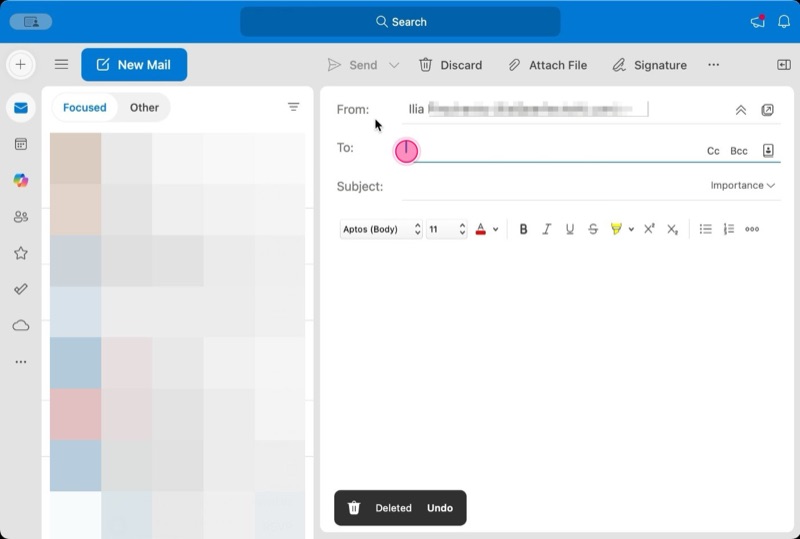
Change ManagerThe Change Manager classifies the request as a standard, normal or emergency change, which determines the approval path it follows.
Checkpoint: The classification matches the actual risk level of the change rather than the requester's preferred approval path.
- 5.3
Assess risk and impact
Change RequesterThe Change Requester, with input from the Change Manager, documents the systems, users and dependencies affected by the change and the likely impact if it fails.
- 5.4
Prepare test and rollback plans
Change RequesterThe Change Requester writes a test plan describing how success will be confirmed and a rollback plan describing exactly how to reverse the change.
Warning: No change proceeds to implementation without a documented rollback plan, even for changes that seem simple.
- 5.5
Submit normal changes to the CAB
Change ManagerThe Change Manager schedules the change for review at the next Change Advisory Board meeting and distributes the request in advance.
- 5.6
Obtain CAB approval
CAB MemberThe CAB reviews the risk assessment, test plan and rollback plan, then approves, rejects or requests more information on the change.
Checkpoint: Approval is recorded in the change record before any implementation work begins on a normal change.
- 5.7
Schedule the maintenance window
Change ManagerThe Change Manager schedules the approved change into an agreed maintenance window on the change calendar.
- 5.8
Notify affected users
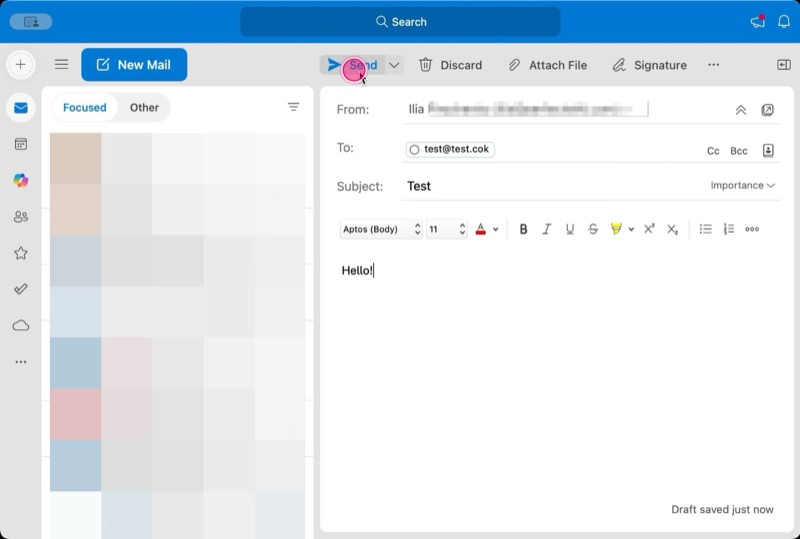
Change ManagerThe Change Manager notifies affected users and stakeholders of the scheduled change and expected impact ahead of the maintenance window.
- 5.9
Implement the change
System AdministratorThe System Administrator implements the change during the scheduled window, following the documented plan step by step.
- 5.10
Test against success criteria
System AdministratorThe System Administrator tests the change against the success criteria defined in the request to confirm it works as intended.
Checkpoint: The change is not marked successful until it passes every success criterion defined in the request.
- 5.11
Execute rollback if needed
System AdministratorIf the change fails to meet its success criteria or causes unexpected problems, the System Administrator executes the documented rollback plan immediately.
- 5.12
Document the outcome
Change RequesterThe Change Requester updates the change record with the outcome, any issues encountered, and whether a rollback was needed.
- 5.13
Close the change
Change ManagerThe Change Manager closes the change record and reports the outcome back to the CAB, including emergency changes reviewed after the fact.
6.Quality checks
- →Every normal change has CAB approval recorded before implementation begins.
- →Every change request includes a documented rollback plan.
- →Emergency changes receive after-the-fact CAB review at the next scheduled meeting.
- →Affected users are notified ahead of the scheduled maintenance window.
7.Records
- →Change request record
- →CAB meeting minutes and approval decision
- →Test results
- →Post-implementation review notes
8.KPIs
- →Percentage of changes implemented without causing an incident
- →Change success rate
- →Percentage of changes with a documented rollback plan
- →Average time from submission to approval
9.Common mistakes
- →Implementing a change before CAB approval is recorded.
- →Skipping the rollback plan for a change that seems simple.
- →Not notifying affected users ahead of a maintenance window.
- →Classifying a risky change as standard to avoid the CAB review.
10.Revision history
| Revision | Date | Description | Reviewed by |
|---|---|---|---|
| 1.0 | September 15, 2026 | Initial release | Ilia Pirozhenko |
This is a template. Adapt it to your organization, equipment and local regulations before use.